
What You Need Before Installing IPTV on FireStick
Amazon FireStick is one of the most popular devices for IPTV streaming — affordable, portable, and works on any HDMI TV. By default, FireStick only allows apps from the Amazon App Store. To install IPTV applications, you need to sideload them using an APK file. This guide shows you exactly how to do that — step by step, with screenshots for every action.
Fire TV Stick Lite, 3rd Gen, 8K, 8K Max, or Fire TV Cube all work with this guide.
Wi-Fi connection to your home network. 10 Mbps or faster for HD, 20 Mbps or faster for 8K.
Your Xtream Codes login credentials — server URL, username, and password — received after activation.
The standard remote that ships with FireStick works for all steps in this guide.
📥 Install the Downloader App on FireStick
Downloader is a free application available in the Amazon App Store. It works as both a browser and a file manager, allowing you to enter a URL or Downloader code to download and install APK files directly on your FireStick. You only need to install it once.
 FireStick with Yeah TV IPTV — complete setup takes under 10 minutes.
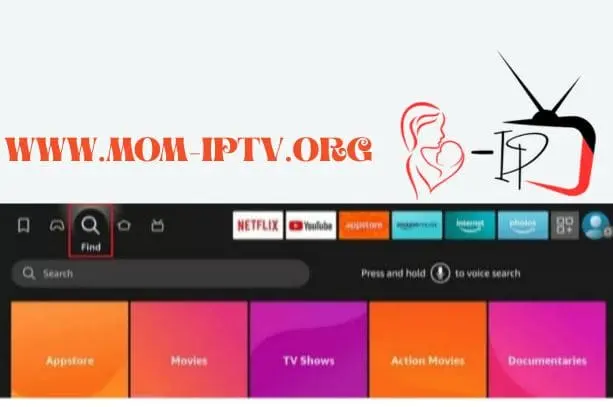
Select the Find Icon on Your FireStick Home Screen
From the FireStick home screen, navigate to the top navigation bar and select the Find icon — the magnifying glass. This opens the Amazon search interface.
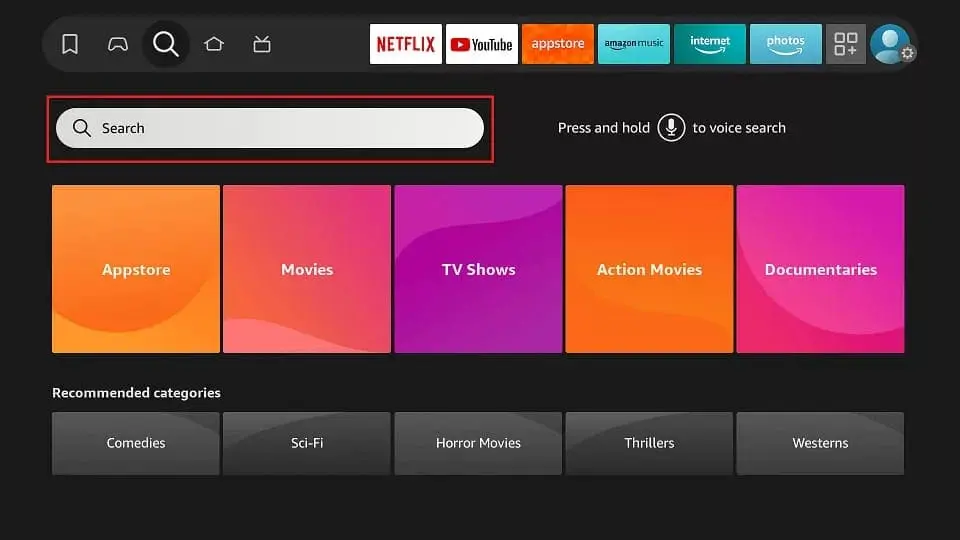
Open the Search Field
From the Find menu, select Search to open the text input field. You can use the on-screen keyboard or speak into your Alexa remote by holding the microphone button and saying "Downloader".
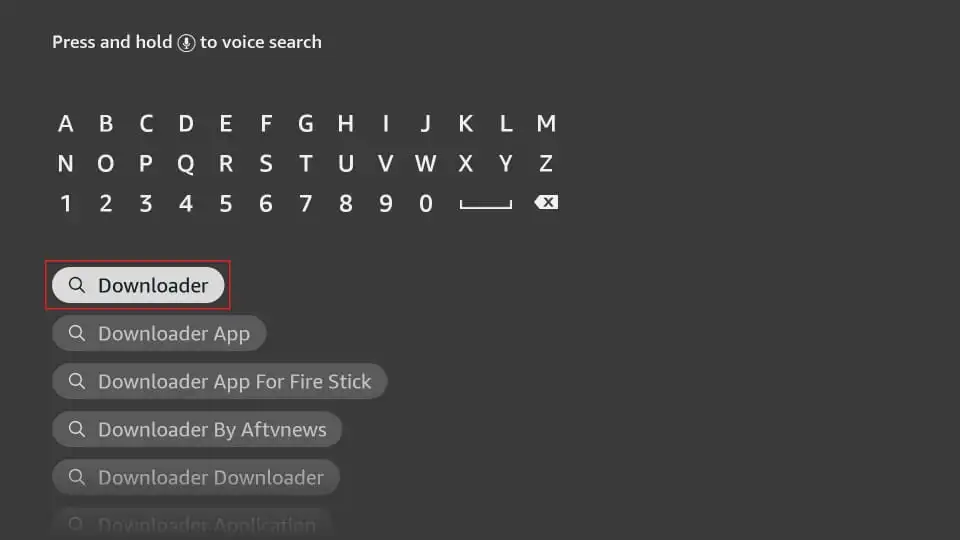
Type "Downloader" and Search
Using the on-screen keyboard, type Downloader and press the Search button. The Downloader app — developed by AFTVnews — will appear in the search results. It is a free app and has been available on the Amazon App Store since 2017.
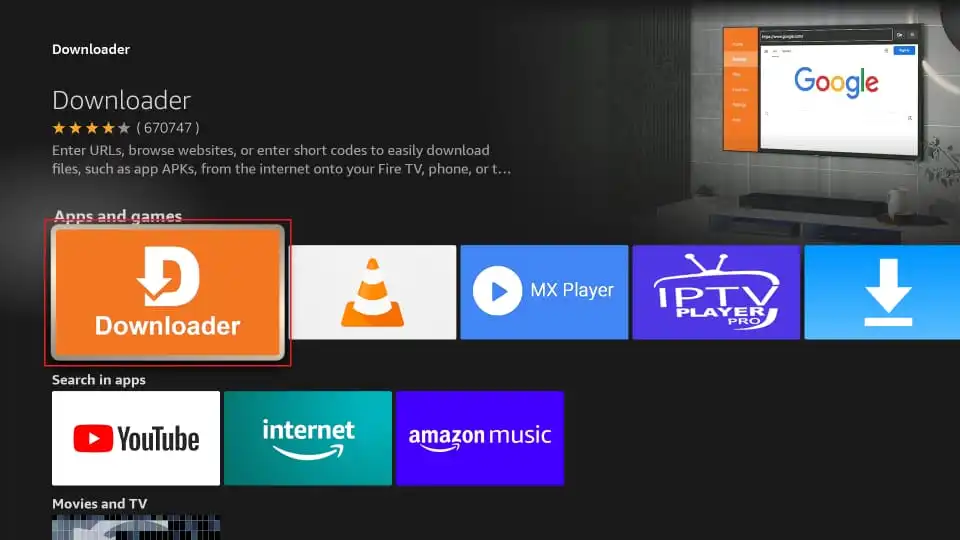
Select the Downloader App from Results
In the search results, select the Downloader app. Verify it is the correct app — the icon is orange with a downward arrow. Tap to open the app detail page.
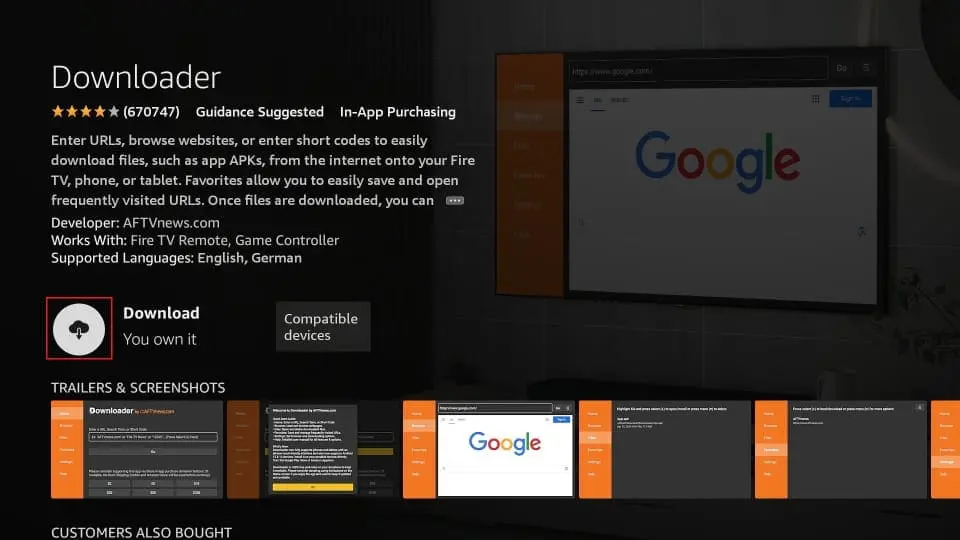
Click Download / Get
On the Downloader app page, click Download or Get to begin the installation. The app is free and small — typically downloads and installs in under 60 seconds.
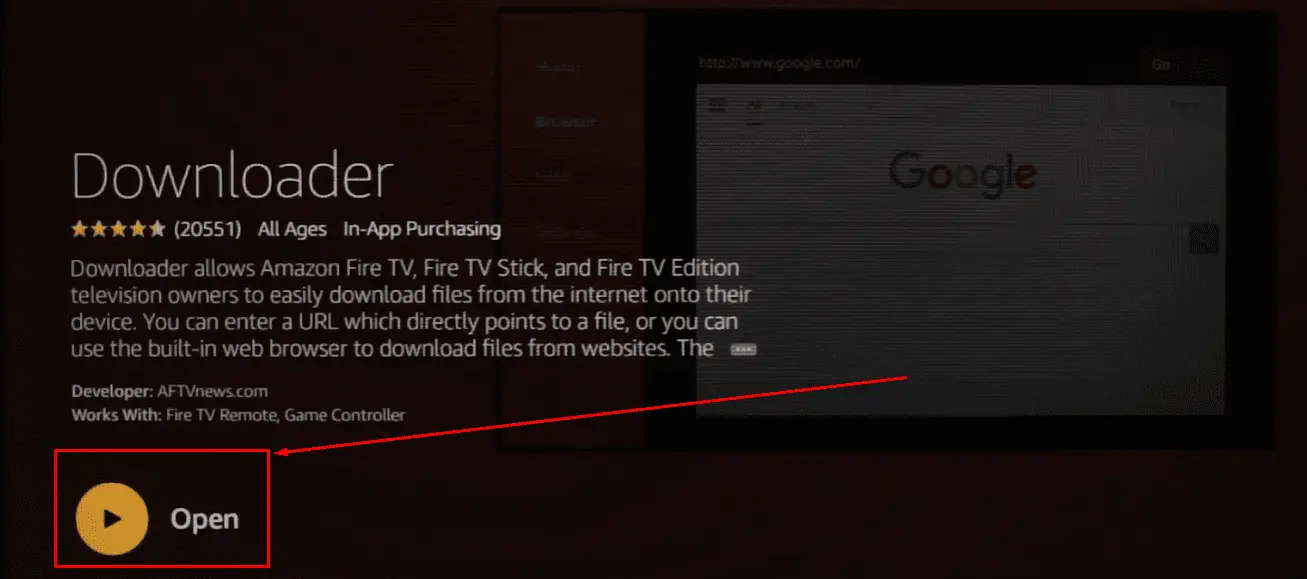
Open the Downloader App
Once installation is complete, click Open to launch Downloader for the first time. You may be prompted to allow storage permissions — tap Allow. The app will open to a home screen with a URL input field. Do not use Downloader yet — you first need to enable Unknown Sources in Part 2.
🔓 Enable Unknown Sources on FireStick
Before FireStick can install any APK file that did not come from the Amazon App Store, you must enable "Unknown Sources" in the Developer Options. This is a standard security setting and is reversible at any time. This process involves unlocking Developer Options by tapping your device name 7 times.
You only need to complete this section once. Once Unknown Sources is enabled for Downloader, you do not need to repeat these steps for future APK installations.
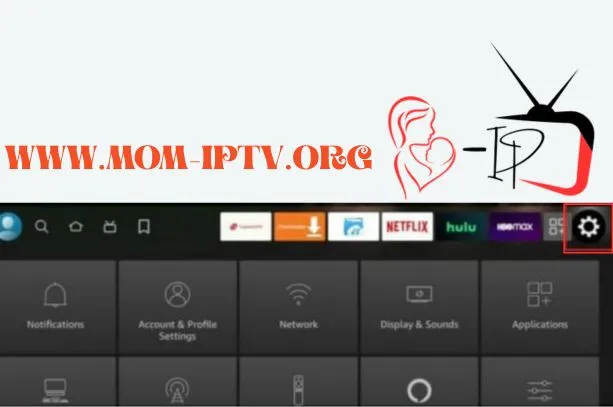
Go to FireStick Settings
From the home screen, navigate to the top right and select Settings — the gear icon. This opens the main FireStick settings menu.
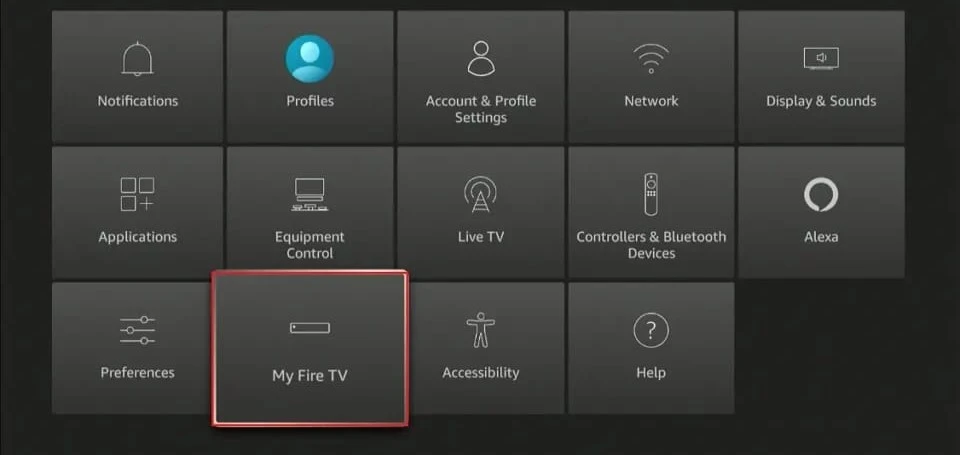
Select "My Fire TV"
In the Settings menu, scroll across and select My Fire TV. On older FireStick models this may appear as Device instead.
Open "About"
Inside My Fire TV, scroll down and select About. This shows your device model, software version, and serial number. You need this screen to unlock Developer Options.
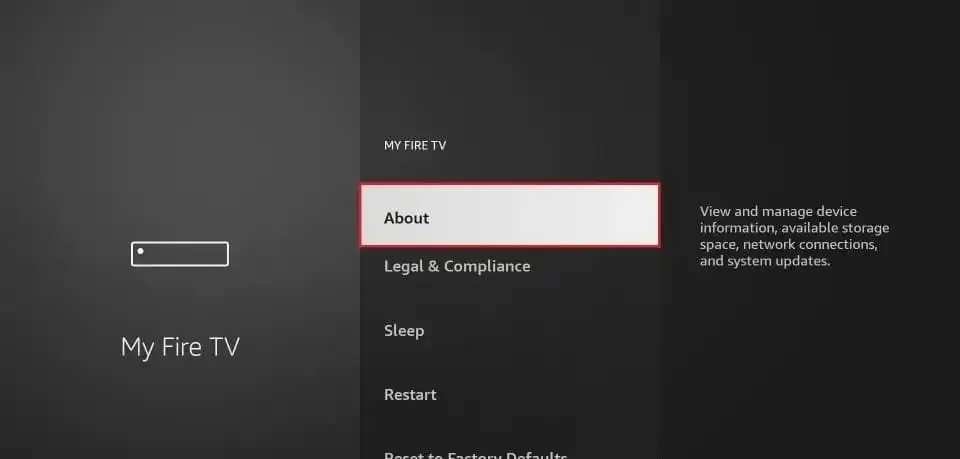
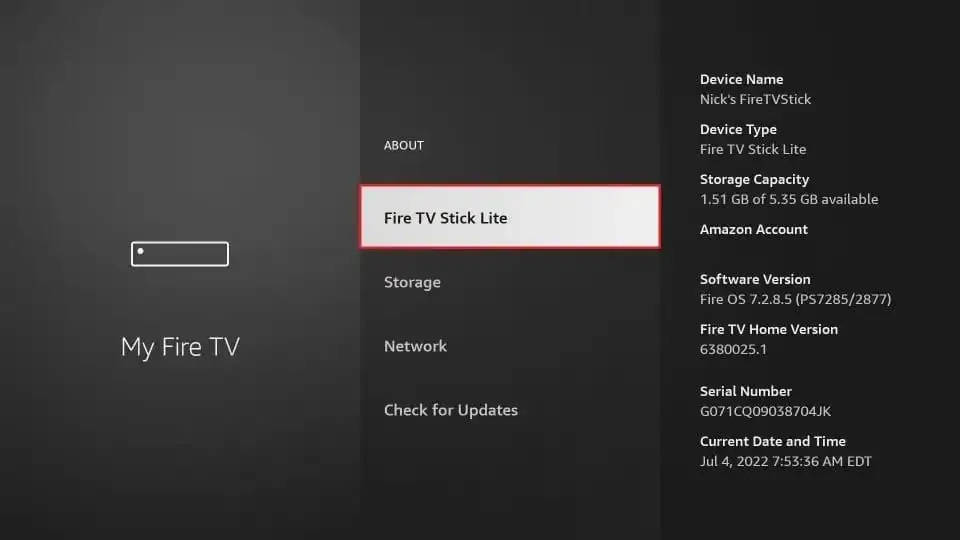
Click Your Device Name 7 Times
In the About screen, find your device name at the top — it will say something like "Fire TV Stick 8K" or "Fire TV Cube". Click it rapidly 7 times in a row. After a few clicks you will see a countdown message. After the 7th click, a message will appear saying "You are now a developer".
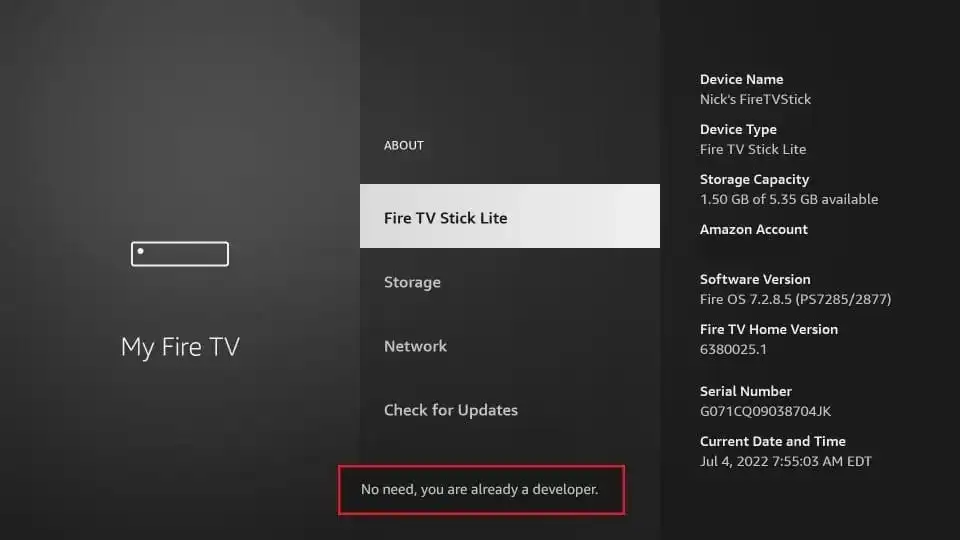
Open "Developer Options"
Go back to the My Fire TV screen. You will now see a new option called Developer Options — it was hidden before you completed Step 4. Select it to open the developer settings menu.
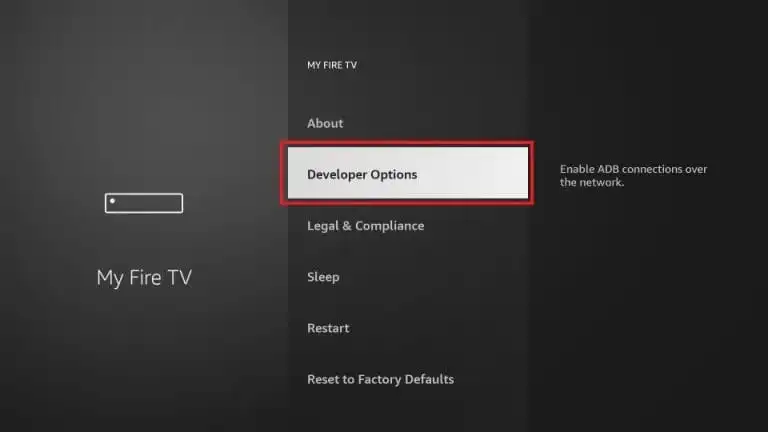
Enable ADB Debugging & Install Unknown Apps
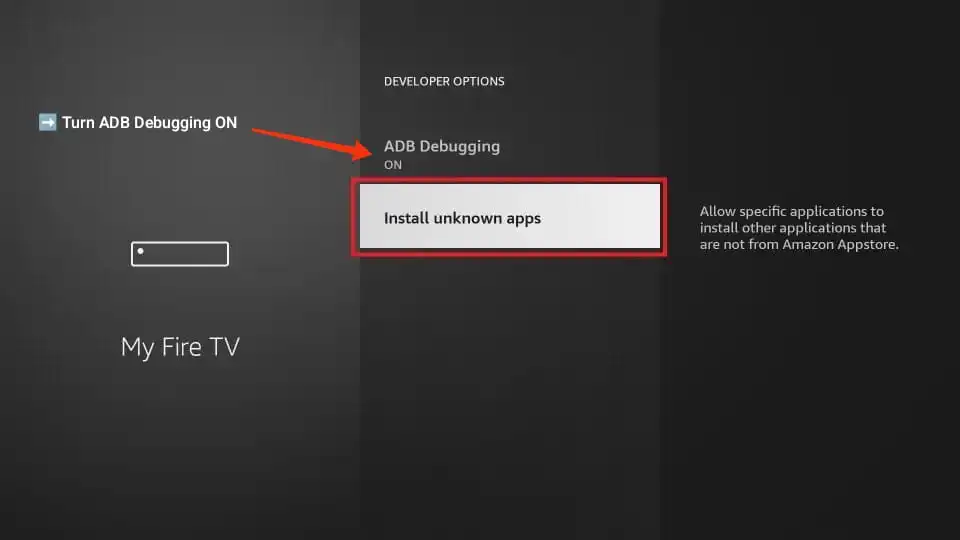
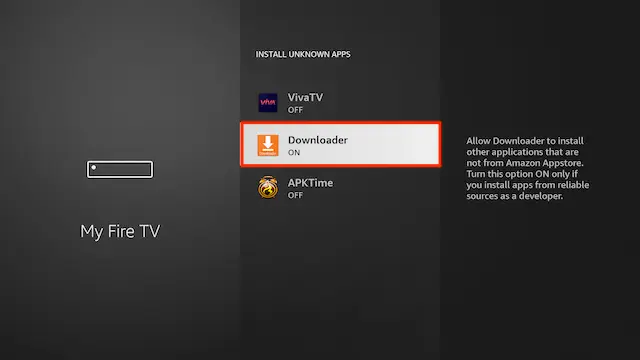
Inside Developer Options, enable two settings. First, turn on ADB Debugging. Second, scroll down to Install Unknown Apps, select it, find Downloader in the list, and toggle it to ON. This tells your FireStick to trust APK files installed through Downloader.
📦 Install Your IPTV App Using Downloader
With Downloader installed and Unknown Sources enabled, you can now install any IPTV application using a Downloader code or direct APK URL. Apps are listed by server type below. Enter the code or URL in the Downloader URL field and press Go.
Open the Downloader App
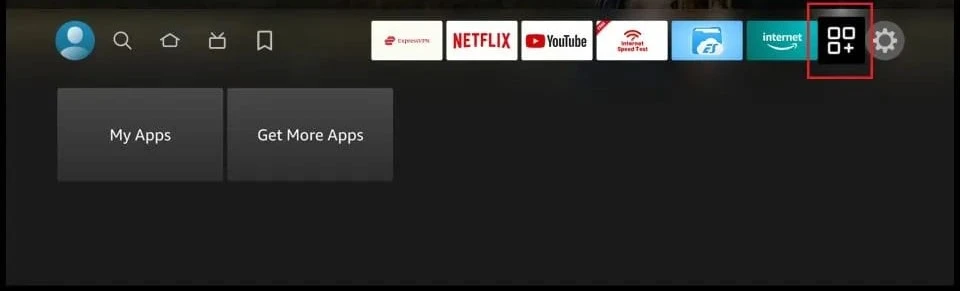
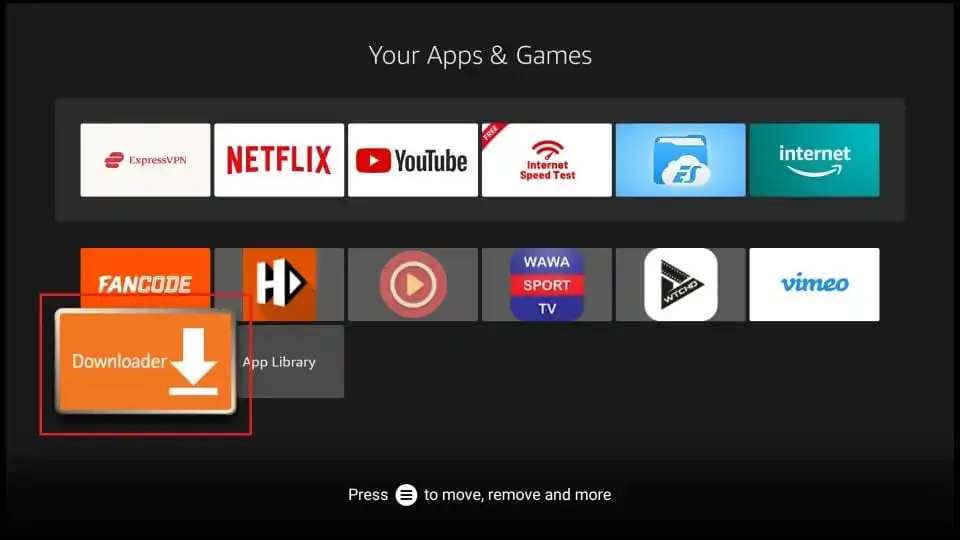
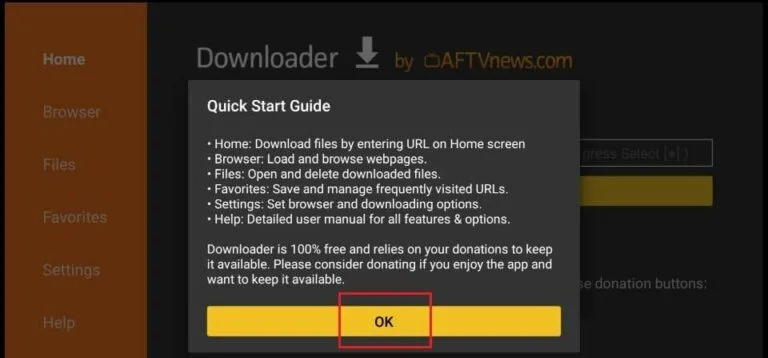
Navigate back to the FireStick home screen. Find Downloader in your Recent apps or under Apps. Open it. You will see the home screen with a URL input bar and a file manager on the left sidebar.
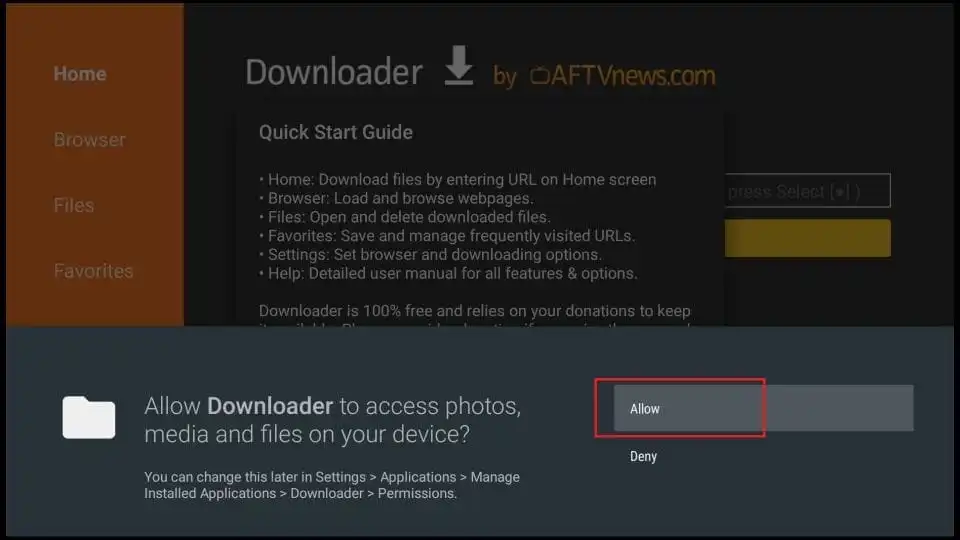
Allow Storage Permissions
On the first launch, Downloader will ask for storage permissions. Select Allow on both prompts. This is required for Downloader to save APK files to your FireStick's internal storage before installation.
Enable JavaScript in Downloader Settings
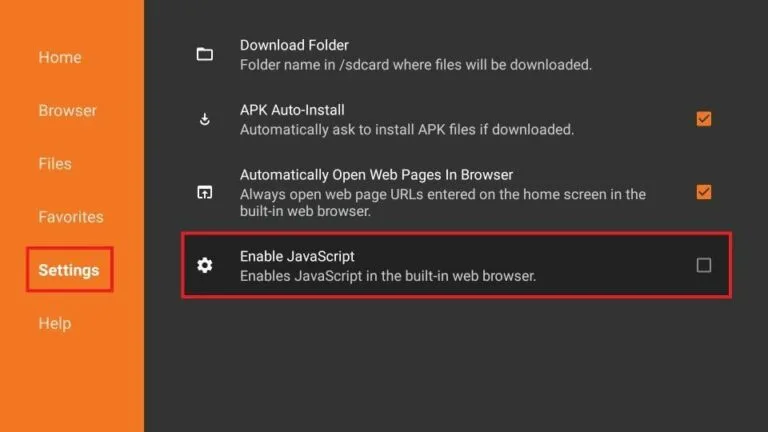
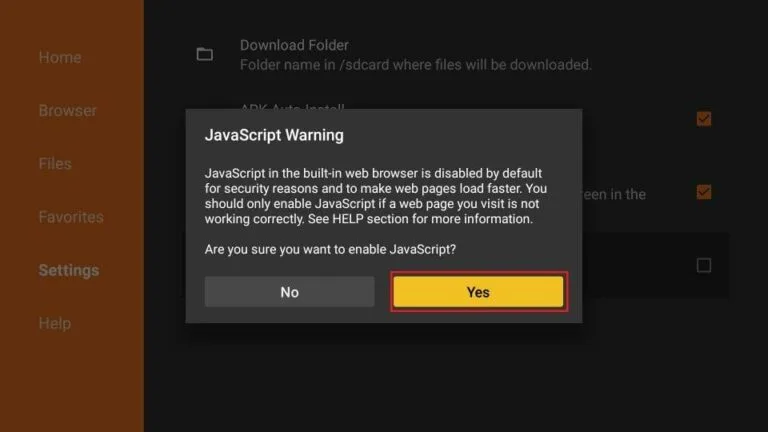
In the Downloader app, go to Settings (gear icon at the bottom left) and ensure JavaScript is toggled ON. This is required for some download pages to load correctly.
Enter Your App Code or URL & Install
Return to the Downloader home screen, select the URL field, and enter the Downloader code or direct APK URL for your chosen app. Press Go — Downloader will download and install the file automatically. After installation, delete the APK file when prompted to free storage space.
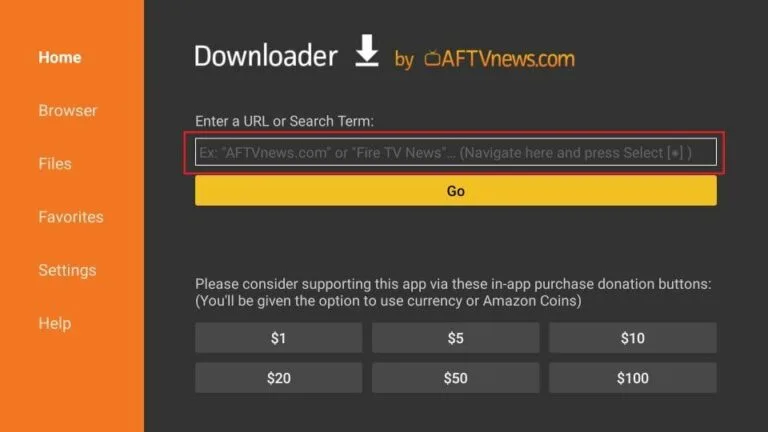
How to use a code: Open Downloader, tap the URL field, type the 7-digit code (e.g. 8256094) and press Go. Downloader resolves the code to the correct APK download page automatically. After installation, delete the APK file when prompted to free storage space.
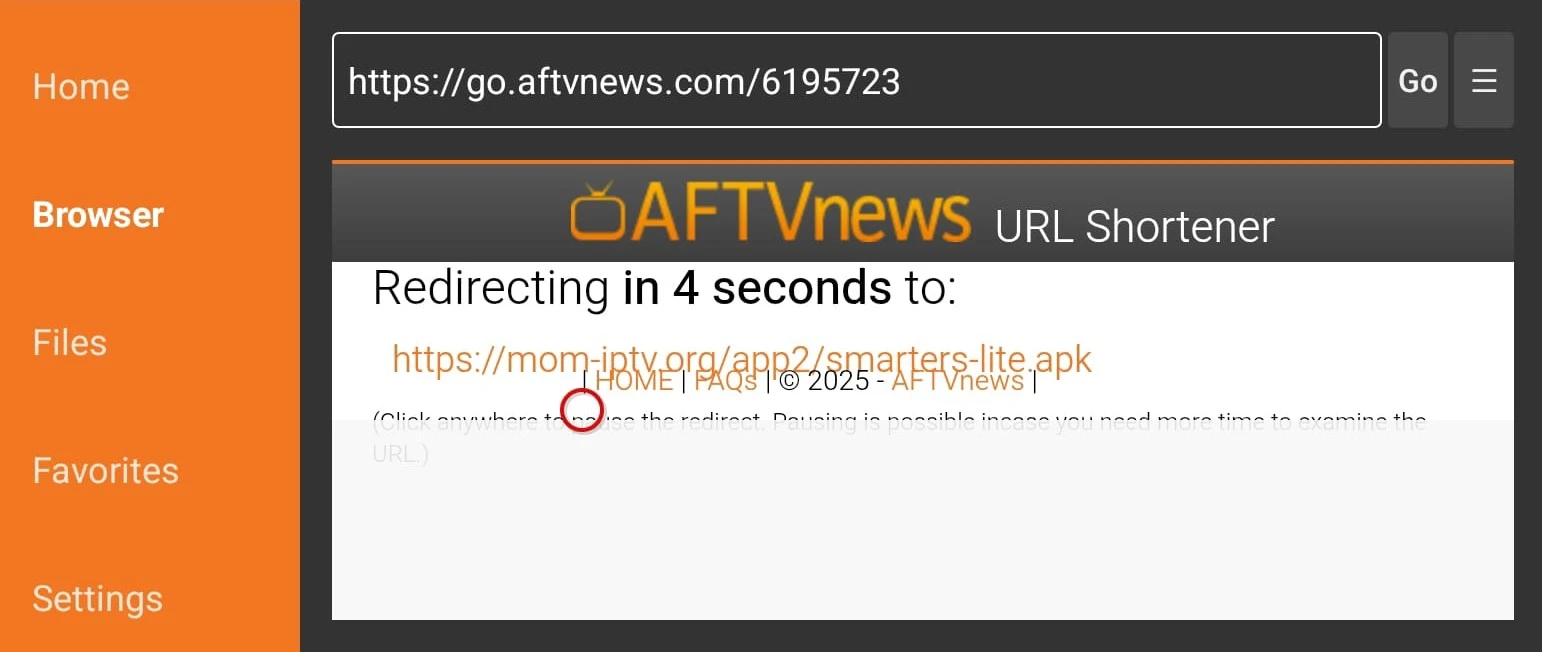
Download the APK File
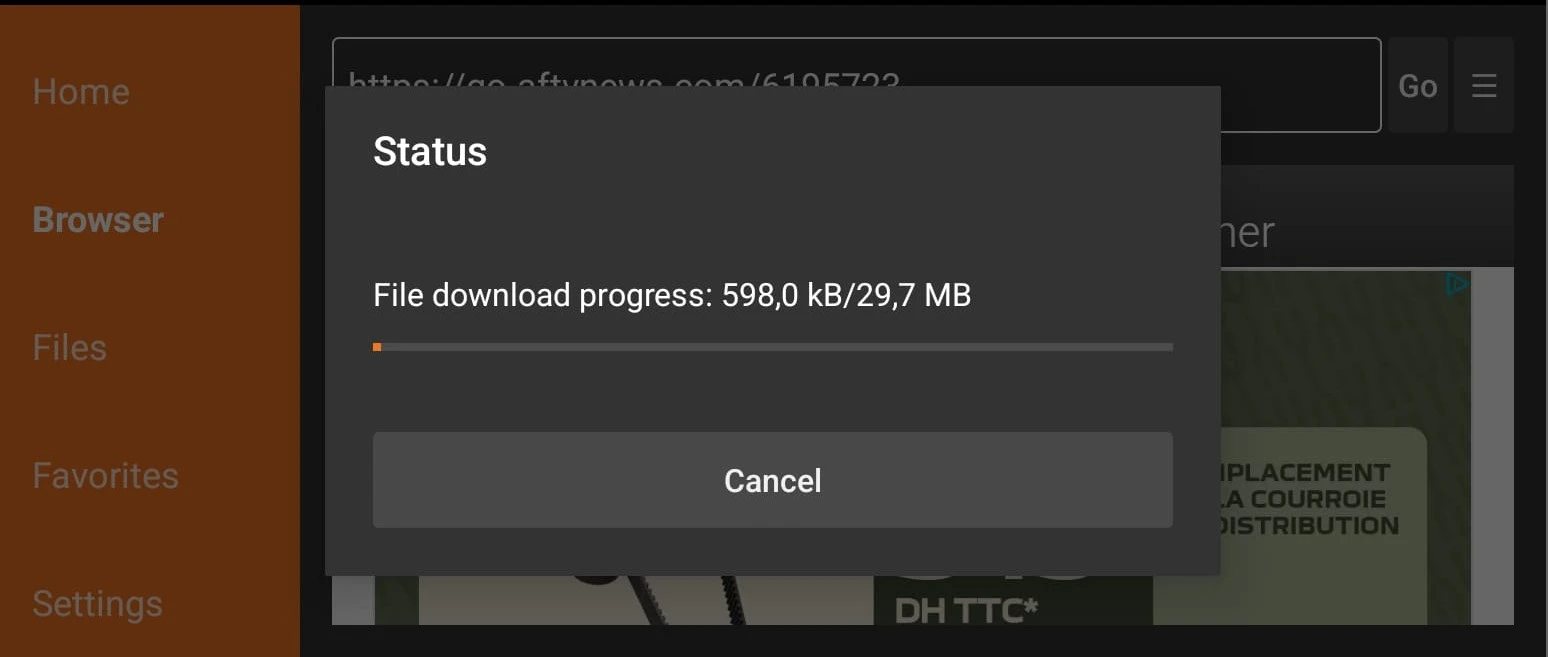
After entering the URL or code and pressing Go, Downloader will navigate to the download page and begin downloading the APK file. A download progress bar will appear. Most IPTV app APKs are between 10–50 MB and download in under 30 seconds on a standard broadband connection.
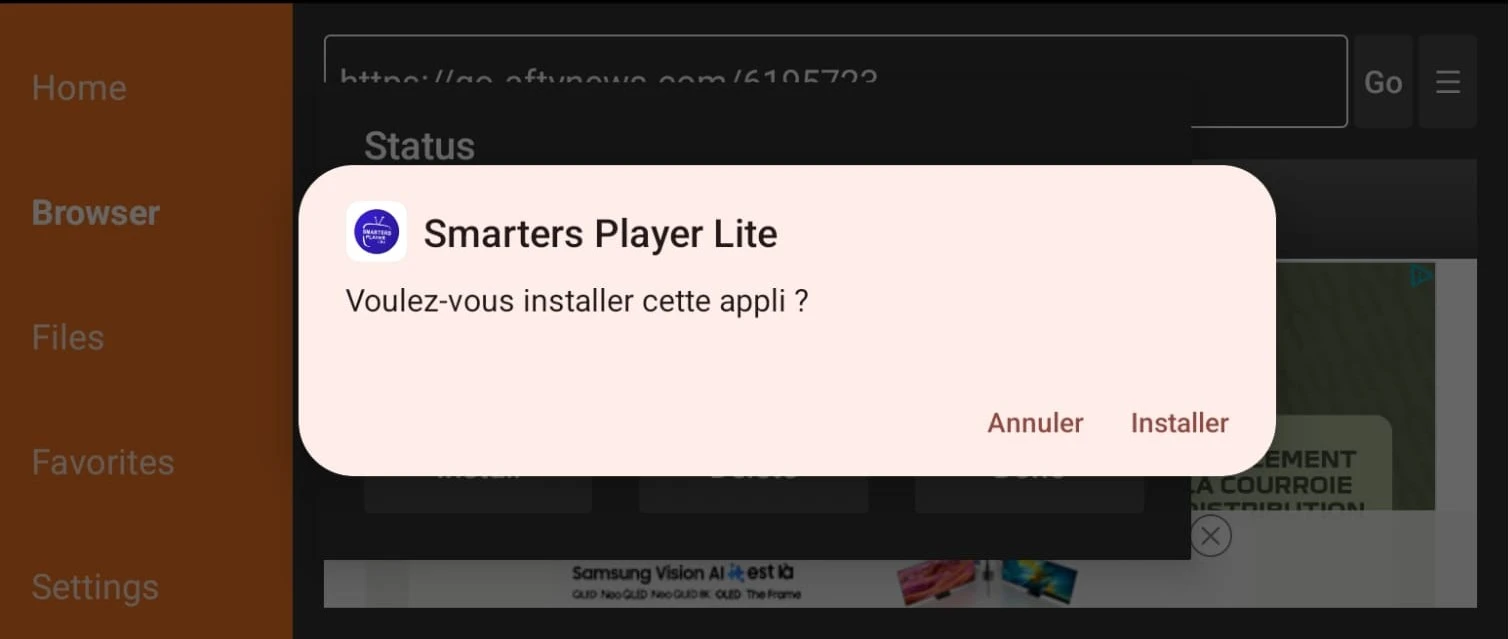
Install the APK
Once the download is complete, the FireStick installation screen will appear automatically. Select Install and wait for the installation to complete — typically 5–15 seconds.
Delete the APK File to Free Storage
After installation, Downloader will prompt you to delete the APK file. Select Delete — the APK is no longer needed and keeping it wastes storage. FireStick models typically have only 8 GB of internal storage.
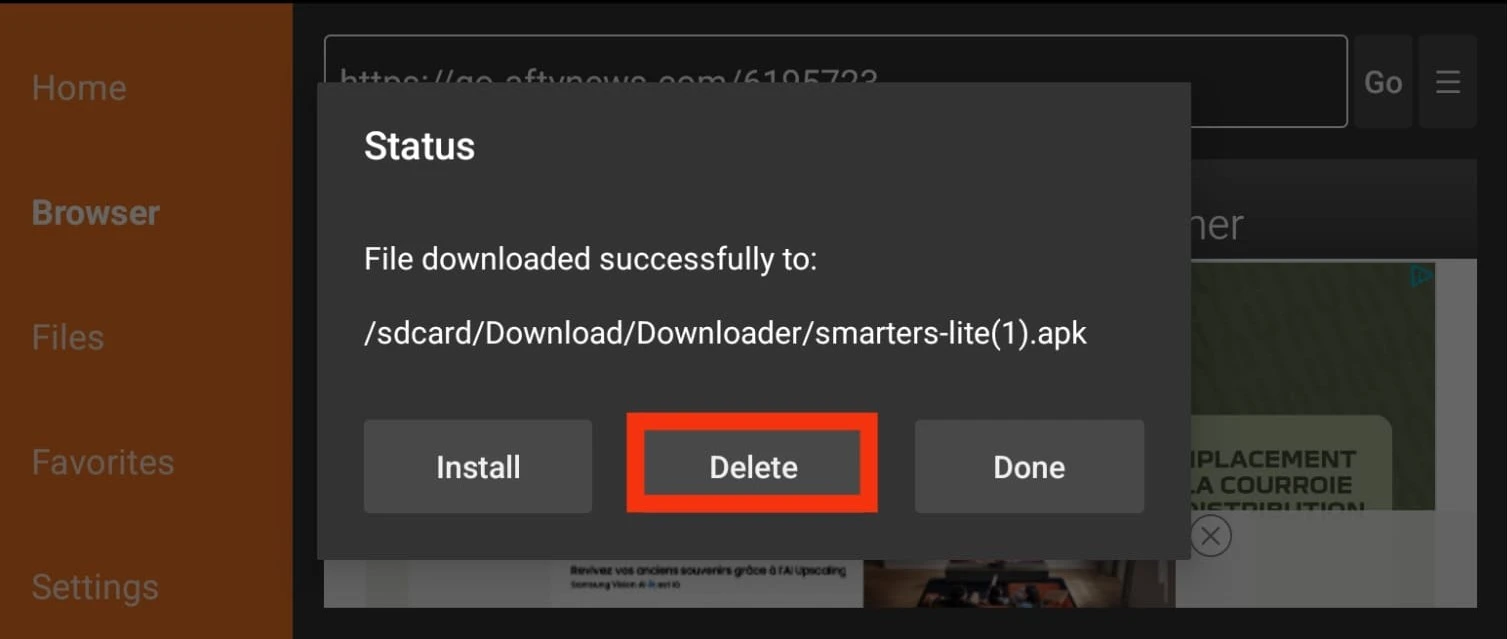
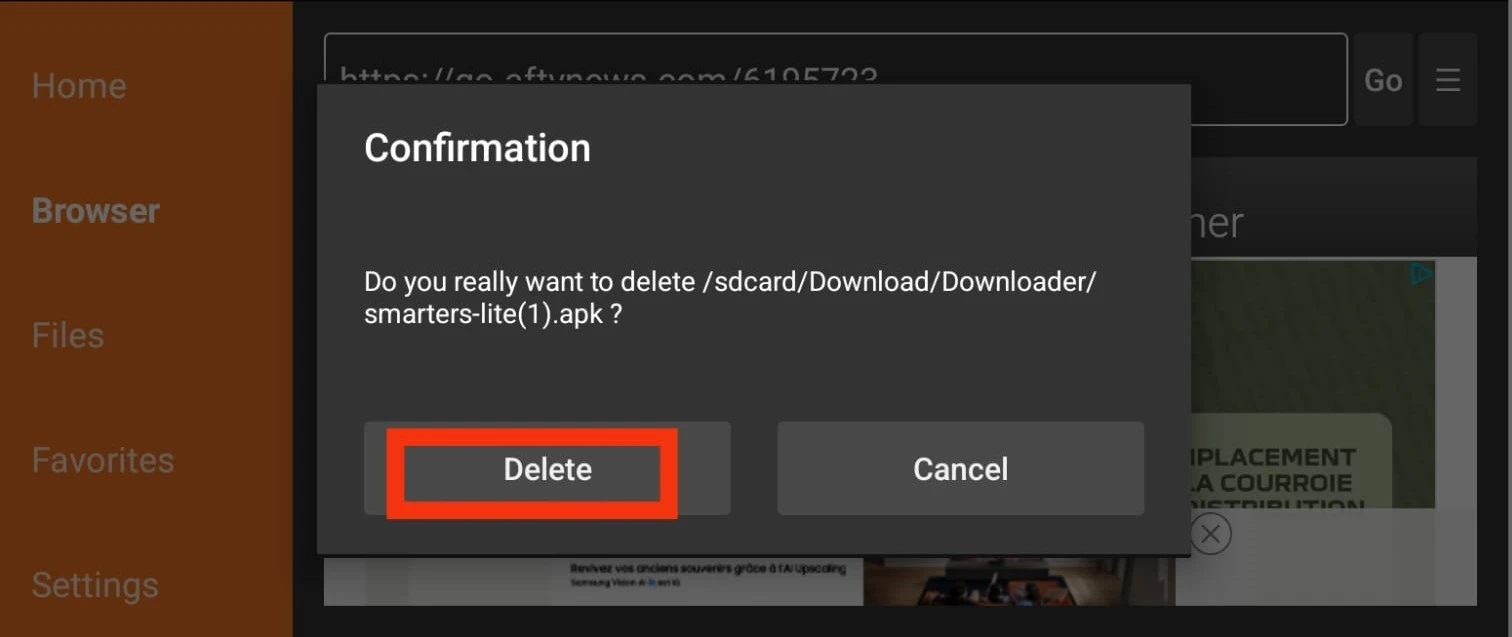
Installation complete. Open the app and enter your credentials. For server-specific apps (8K Player, T-Rex, Crystal, Lemo): enter your username and password. For all-server apps (Smarters, XCIPTV): select Add Account via Xtream Codes and enter your server URL, username, and password from your activation email.
3 More Ways to Install IPTV Apps on FireStick
The Downloader method in Parts 1–3 is the most common approach. The three methods below offer alternatives that may be more convenient depending on your setup.
📱 Apps2Fire — Install from Android Phone to FireStick
Apps2Fire is a free Android app that lets you install APK files from your phone directly to a connected FireStick over Wi-Fi — no cables required. Ideal if you already have the IPTV app installed on your Android phone.
Install Apps2Fire on Your Android Phone
On your Android phone, open the Google Play Store and search for Apps2Fire. Install the free version — published by "s1m0n". Open the app once installed.
Find Your FireStick IP Address
On your FireStick, go to Settings → My Fire TV → About → Network and note the IP Address — it looks like 192.168.1.105.
Connect Apps2Fire to Your FireStick
In Apps2Fire on your phone, tap the menu icon → Setup. Enter your FireStick's IP address and tap Connect. A confirmation appears when the connection is established.
Select "Local Apps" and Upload
Tap Local Apps in Apps2Fire. Find your IPTV application in the list and tap Upload. Apps2Fire will transfer and install the app on your FireStick automatically.
💻 ADB Link — Install from Windows or Mac PC
ADB Link is a free desktop application that lets you sideload APK files from your computer to any ADB-enabled FireStick over Wi-Fi. The fastest method for installing multiple apps.
Download ADB Link to Your Computer
Search for ADB Link download and download the free version from adblink.com. Install and open the application.
Find Your FireStick IP Address
On your FireStick, go to Settings → My Fire TV → About → Network and note the IP address (192.168.x.x).
Connect and Sideload
In ADB Link, enter your FireStick's IP address and click Connect. Accept the connection prompt on your FireStick. Then click APK Sideload, select your APK file, and wait for installation to complete automatically.
📂 ES File Explorer — Install APK Directly on FireStick
ES File Explorer is a file manager for FireStick that allows you to browse, manage, and install APK files stored on your device's internal storage or a USB drive. Useful if you already have an APK saved on a USB stick.
Install ES File Explorer via Downloader
Using the Downloader app from Part 1, enter code 47133343 and install ES File Explorer using the same process as Part 3.
Open ES File Explorer and Find the APK
Open ES File Explorer and navigate to Local → Internal Storage → Download. APKs downloaded by Downloader are typically saved here. If using a USB drive, select USB from the sidebar.
Select the APK and Install
Navigate to the APK file and press the select button. Choose APK Installer from the options that appear. The standard FireStick installation screen will appear — select Install and wait for completion.
Which Installation Method Is Right for You?
FireStick APK Installation — Troubleshooting
Unknown Sources is not fully enabled for Downloader. Go back to Settings → My Fire TV → Developer Options → Install Unknown Apps and confirm Downloader is set to ON.
The URL or code may be incorrect. Double-check the code against the table in Part 3. Contact Yeah TV support via WhatsApp for an updated direct link if needed.
This is typically a network issue. Ensure your FireStick is connected to 5 GHz Wi-Fi if available, or use a wired Ethernet connection via an Amazon Ethernet Adapter. Verify your internet speed meets the minimum 10 Mbps for HD streaming.
Double-check your credentials — server URL, username, and password — are entered exactly as provided with no extra spaces. If the issue persists, contact Yeah TV support via WhatsApp — the team responds in under 5 minutes.
🎉 FireStick Is Set Up — Get Your Yeah TV Access Now
Your FireStick is configured and your IPTV application is installed. All that remains is activating your Yeah TV subscription or free trial. The Yeah TV support team is available 24/7 via WhatsApp and email to walk you through the login process if needed.
No credit card · 45,000+ channels · Full access · 24/7 support
- ✓45,000+ live channels — 80+ countries
- ✓200,000+ on-demand movies and series
- ✓8,000+ sports channels — zero blackouts
- ✓HD · Full HD · 8K streams
- ✓Arabic, French, English, Spanish & 30+ languages
- ✓EPG updated every 15 minutes
- ✓24/7 support — WhatsApp under 5 minutes
- ✓7-day money-back guarantee on all paid plans