
Android TV (Sony, Philips, Hisense, TCL, Nvidia Shield, Mi Box) and Google TV (Chromecast with Google TV, TCL Google TV, Sony Bravia XR) use the same process. If your TV runs either operating system and has the Google Play Store, this guide applies to your device.
Some apps only work with a specific server. If you are unsure which server your Yeah TV account is on, contact support via WhatsApp — they will confirm in under 5 minutes. Apps marked For All Servers work with every Yeah TV account.
⚡ Power On & Connect to Your Network
Turn on your Android TV and connect to your home network — Wi-Fi or Ethernet. A stable connection is required for both the app download and IPTV streaming. 10 Mbps or faster for HD, 20 Mbps or faster for 8K.
Use a wired Ethernet connection where available — it eliminates buffering and is significantly more stable than Wi-Fi for IPTV.
🛒 Open the Google Play Store
From the Android TV home screen, navigate to Apps and open the Google Play Store. Sign in to your Google account if prompted.
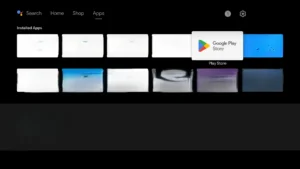 Open Google Play Store
🔍 Tap to enlarge
Open Google Play Store
🔍 Tap to enlarge
🔍 Search for Downloader
In the Google Play Store, search for Downloader by AFTVnews — orange icon with white arrow. This free app lets you install IPTV apps via code or URL on any Android TV device.
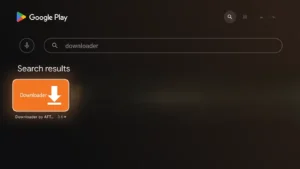 Search: Downloader by AFTVnews
🔍 Tap to enlarge
Search: Downloader by AFTVnews
🔍 Tap to enlarge
📥 Install Downloader
Select Downloader and click Install. Wait for installation to complete — usually under 60 seconds. Do not open it yet — first enable Unknown Sources in Step 5.
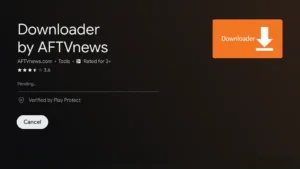 Installing Downloader — Step 1
🔍 Tap to enlarge
Installing Downloader — Step 1
🔍 Tap to enlarge
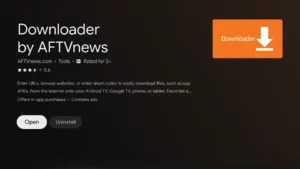 Installation complete
🔍 Tap to enlarge
Installation complete
🔍 Tap to enlarge
🔓 Enable Unknown Sources
Android TV blocks third-party app installation by default. Grant Downloader permission to install apps — this is a one-time step.
Go to Settings
Navigate to Settings — the gear icon at the top right of the home screen.
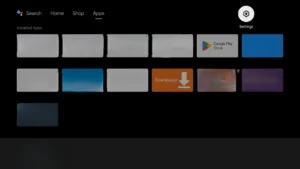 Settings icon🔍 Tap to enlarge
Select Device Preferences
Scroll down and select Device Preferences (or System on Google TV).
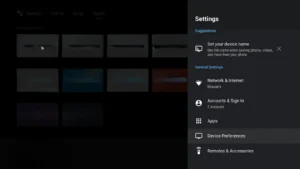 Device Preferences🔍 Tap to enlarge
Open Security & Restrictions
Find and select Security & Restrictions.
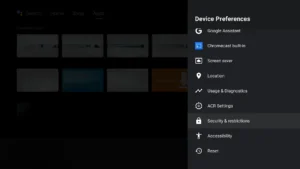 Security & Restrictions🔍 Tap to enlarge
Select Install Unknown Apps
Select Install Unknown Apps and find Downloader in the list.
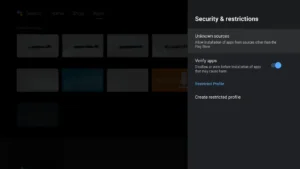 Install Unknown Apps list🔍 Tap to enlarge
Toggle Downloader to Allow
Select Downloader and toggle to Allow. You will not need to repeat this step for future installations.
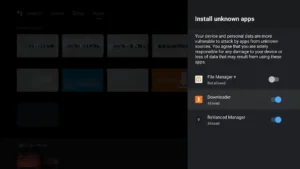 Allow Downloader — ON🔍 Tap to enlarge
▶ Open Downloader & Allow Permissions
Open Downloader from your app library. Select Allow on all storage permission prompts. In Downloader Settings, ensure JavaScript is ON. You are now ready to install any IPTV app using the codes and links in Step 7.
📦 Enter Your App Code or URL & Install
In the Downloader URL field, enter the Downloader code (7-digit number) or the direct APK URL for your chosen app. Press Go — Downloader will download and install the file automatically. After installation, delete the APK file when prompted to save storage space.
After Installation — Enter Your Yeah TV Credentials
Open the installed app. For server-specific apps (8K Player, T-Rex, Crystal, Lemo): enter your username and password directly. For all-server apps (Smarters, XCIPTV): select Add Account via Xtream Codes and enter your server URL, username, and password from your activation email.
Start Streaming on Your Android TV — Free for 24 Hours
Your Android TV is configured and your IPTV app is installed. Request your Yeah TV free trial — no credit card, full access to 45,000+ channels and 200,000+ VOD titles for 24 hours. Support is available 24/7 via WhatsApp and email.
No credit card · 45,000+ channels · 7-day guarantee on paid plans
- ✓45,000+ live channels — 80+ countries
- ✓200,000+ on-demand movies and series
- ✓8,000+ sports channels — zero blackouts
- ✓HD · Full HD · 8K streams
- ✓Arabic, French, English, Spanish & 30+ languages
- ✓EPG updated every 15 minutes
- ✓24/7 human support — WhatsApp & Email
- ✓Plans from $12.99 — 1 to 5 screens